
How a Palworld server transfer works depends on where the world is going. An invite-code world needs its host ID rewritten before it goes on a dedicated server, while a move between servers only takes copying the world folder. These steps were checked with a real save on the Steam version, v1.0.5 (build 102999).
Find the route you need
| From and to | Conversion | What to do |
|---|---|---|
| Invite-code world → dedicated server | Needed | Rewrite the host ID, then put the world on the server |
| Dedicated server → another server | Not needed | Copy the world folder and change one setting |
| Dedicated server → co-op on your PC | Needed | Change your character back to the co-op host ID |
The same goes for a character you levelled on a friend's server. Characters do not move without the world, so get the world folder from the server owner and follow the table above.
Palworld save location
On the Steam version for Windows, press Win + R and enter this path. Inside is a folder named after your Steam ID (a number starting with 7656), and each long folder of letters and numbers inside that is one world.
%LOCALAPPDATA%\Pal\Saved\SaveGames
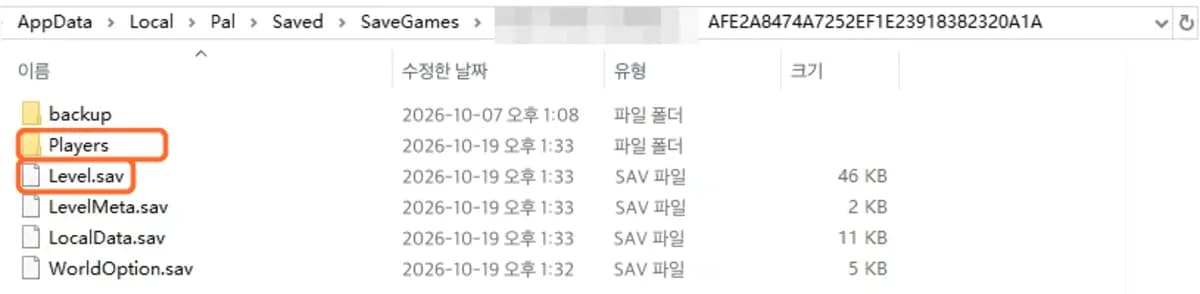
A dedicated server keeps its worlds in the same layout under Pal/Saved/SaveGames/0/. The DedicatedServerName value in Pal/Saved/Config/LinuxServer/GameUserSettings.ini (WindowsServer on Windows) tells you which one is in use.
Moving a co-op save to a dedicated server
Before you start, close Palworld on the host's PC and copy the whole world folder somewhere else.
- Open the Palworld save converter in a PC browser and choose "Co-op → dedicated server".
- Pick the SaveGames folder, then the world. Your browser may say "upload" when you pick a folder, but the files never leave the browser.
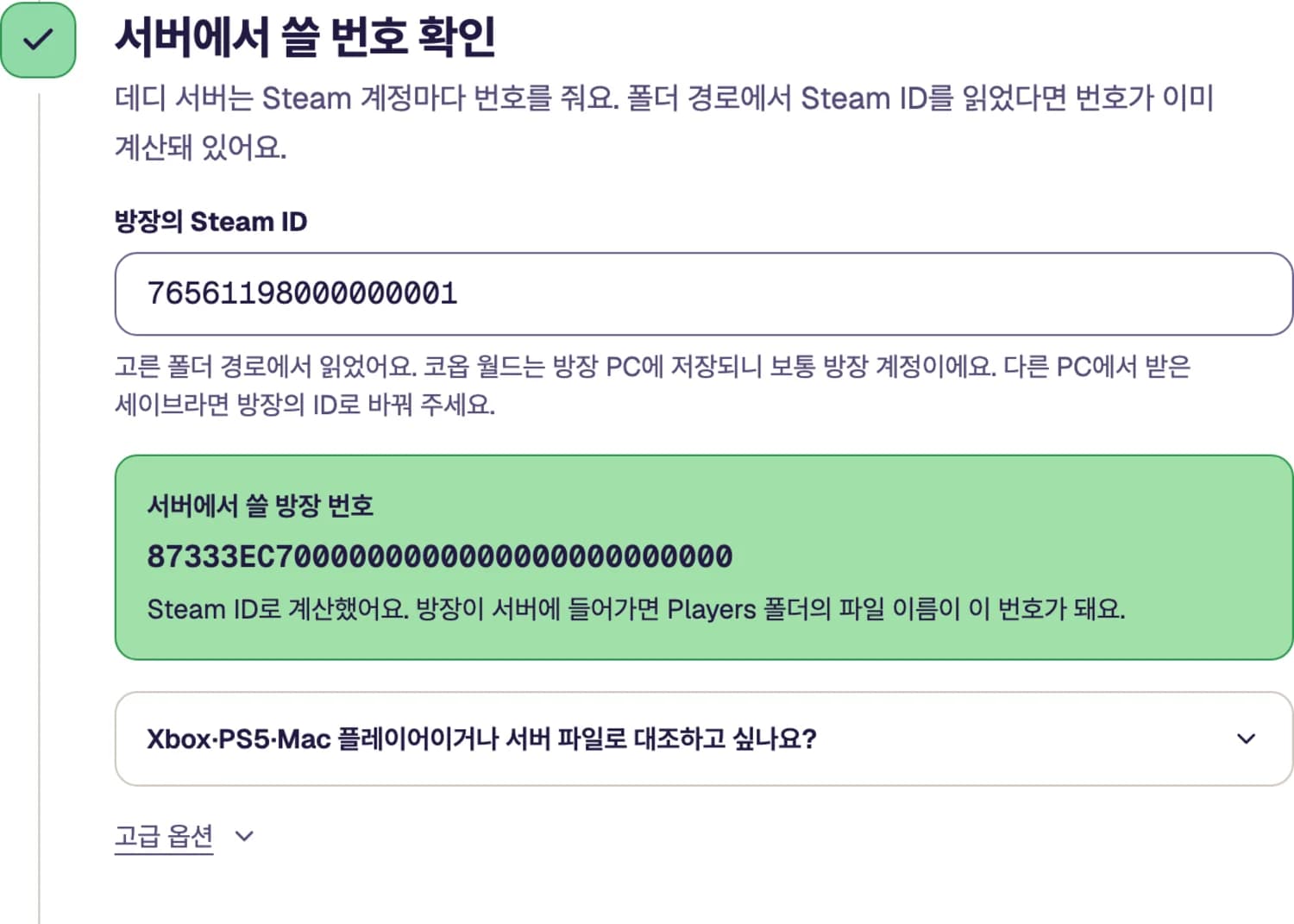
- Check the host character and the ID for the server. The ID is worked out from the Steam ID in the folder path, so you do not need to join the server first.
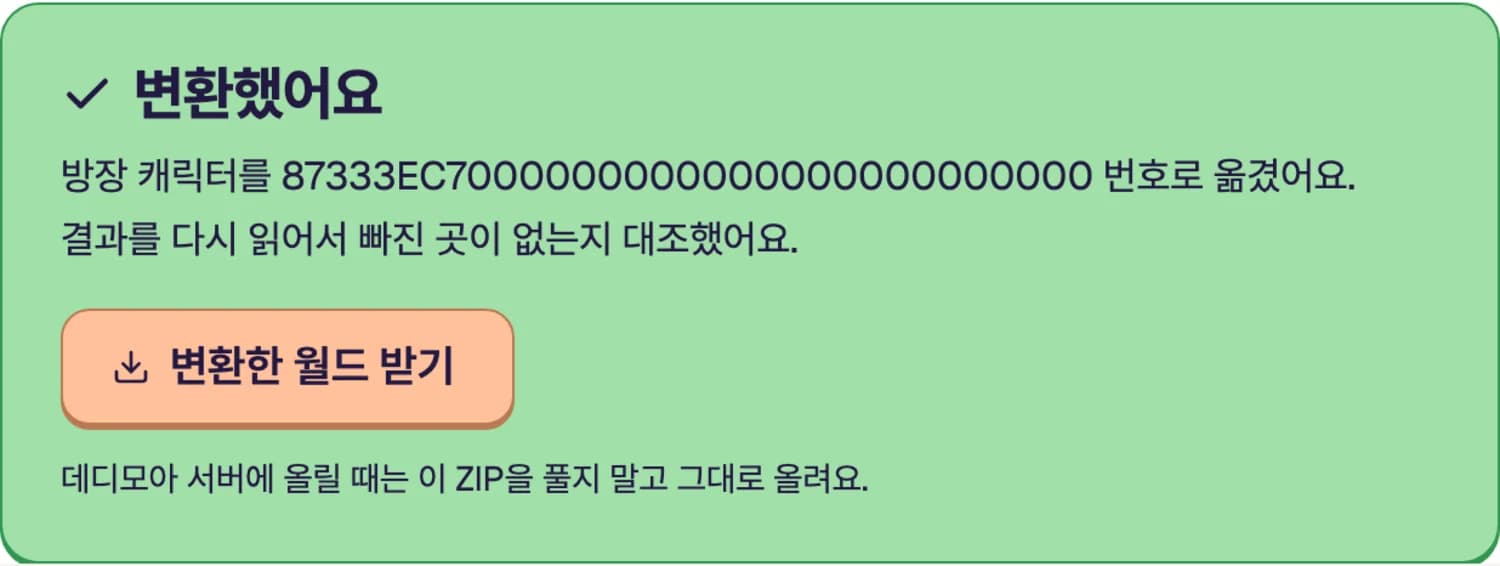
- Convert and download the ZIP.
- Put it on the server as described below.
On a DediMoa server
Open your server in the console, go to "Backups & import" and upload the ZIP without unzipping it. The current world is backed up first, then replaced, and the server restarts by itself. If you do not have a server yet, pick a player count and region on the Palworld server hosting page.
On a server you run yourself
- Stop the server. If it stays on, autosave overwrites what you just added.
- Unzip and put the world folder in
Pal/Saved/SaveGames/0/. Leave the old world beside it as a backup. - Set
DedicatedServerNameinGameUserSettings.inito the new folder's name. Change the setting to match the folder, not the folder to match the setting. - On Linux, check that the new folder has the same owner as the old world. With the wrong permissions the server cannot read the save.
- Start the server. If something is wrong, set
DedicatedServerNameback and the old world returns.
You won't use an invite code anymore. Enter IP:port in the box at the bottom of the game's dedicated server screen and connect. See how to connect to your server for more.

Why copying the save loses the host's character
The co-op host always uses the ID 00000000000000000000000000000001. A dedicated server never uses that ID and gives each Steam account its own. Copy the folder over as it is, and the server treats the host as a newcomer and opens the character creation screen. Friends are not affected, because they already used per-account IDs in co-op.
Here is a real co-op world before and after converting. The host's file has a new name, and the ZIP has no WorldOption.sav.
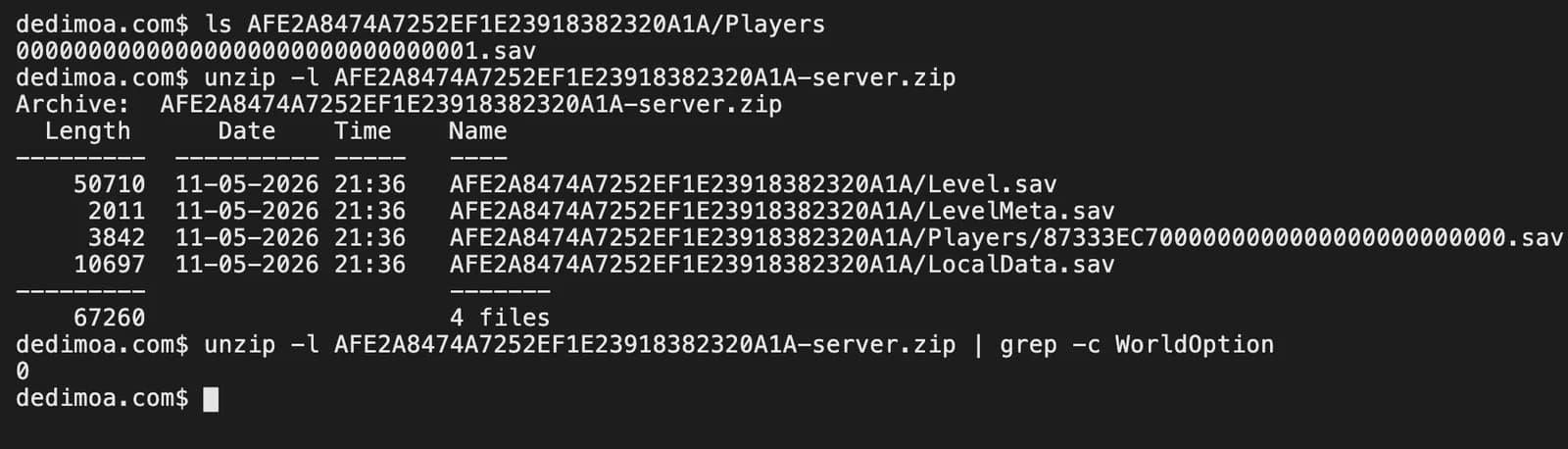
Renaming the file is not enough. Converting that same world also meant changing character and Pal ownership, Pal Box slots, guild records and build records.
| Item in the conversion record | Changed |
|---|---|
| Host character record | 1 |
| Pal owner records | 4 |
| Pal Box and party slots | 4 |
| Character references in guild records | 6 |
| Guild leader and member list | 2 |
| Builder records on structures | 13 |
That is a small world with one character and four Pals. Bigger worlds have more to change.
Moving from one server to another
No IDs change, so no conversion is needed. Both servers give the same IDs as long as both use Steam authentication. If only one runs with -nosteam, the IDs differ, so match the launch options.
- Put both servers on the same game version and stop the old one.
- Copy the whole world folder out of
Pal/Saved/SaveGames/0/on the old server. Without the Players folder, everyone has to make a new character. - Stop the new server, put the folder in the same place and set
DedicatedServerNameto its name. - If the world folder has a
WorldOption.sav, delete it. The reason is under "Server settings do not apply" below. PalWorldSettings.iniis outside the world folder. Copy it separately to keep rates and other settings.- Start the new server and give your friends the new address.
Bringing a server save back to co-op on your PC
- Copy the server's world folder to your PC.
- Create a new co-op world in Palworld, enter it once, leave and close the game. This world receives the files.
- In the save converter, choose "Dedicated server → co-op", pick the world folder and choose your character.
- Copy the contents of the ZIP's world folder into the new co-op world folder, overwriting. Do not add the folder itself.
- Load that world in the game and check it.
What to check after moving
These are the checks we used in game on October 7, 2026. Join the server and go through them in order.
- You enter the world with no character creation screen.
- No new file appears in the server's Players folder after the host leaves.
- Your Pals and Pal Box are intact, and the host shows as guild leader.
- Chests at your existing bases open.
- Friends join with their own characters.
Common problems
It asks me to create a character again
The save was not converted or the ID is wrong. If you converted with another Steam account's ID, put the file name that appeared in the server's Players folder into "Enter ID manually" in the converter and convert again. DediMoa servers reject an unconverted co-op world and tell you why.
The world starts over
The server did not find the world you added. Check that DedicatedServerName exactly matches the folder name, that the folder is directly under SaveGames/0/, and on Linux that the owner is right.
Server settings do not apply
This happens when the world folder contains WorldOption.sav. We confirmed it on a test server on October 7, 2026: with this file present, world settings in PalWorldSettings.ini were not followed, and the REST API refused requests with Unauthorized (AdminPassword is empty). ZIPs from the converter do not include this file. Set rates and other values again with the Palworld server settings generator. If you copied it by hand, stop the server and delete it. To carry over the values you used in co-op, Palworld world settings pairs each in-game option with its ini key.
The map is black
Map exploration is stored in LocalData.sav on each player's PC, not on the server. Close the game, turn Steam Cloud off for a moment, then copy LocalData.sav from the old world's folder into the current server's folder. Each player who wants their map back does this on their own PC.
Do Xbox or Game Pass saves work?
The converter only reads Steam saves for now. Xbox and Game Pass use a different file format.